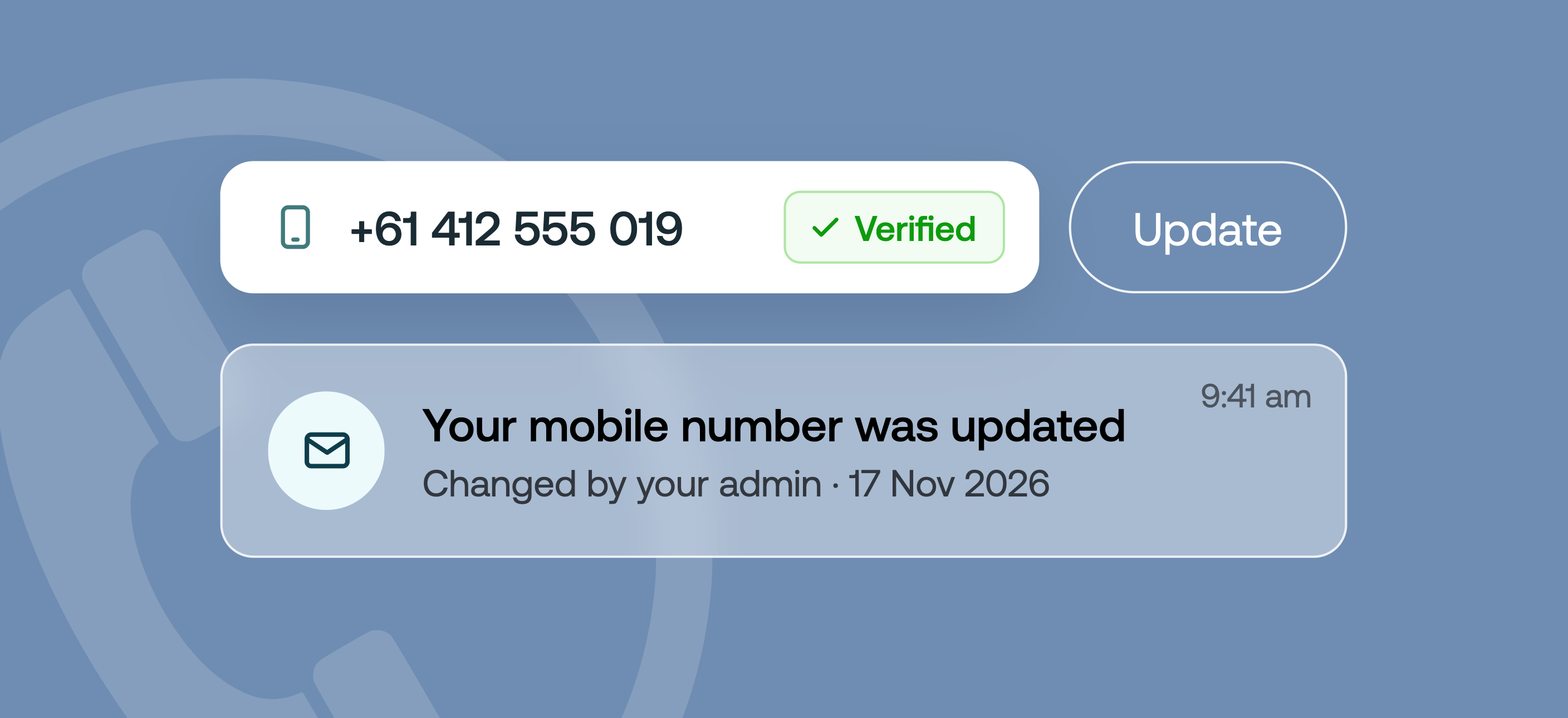
Update a team member's mobile number

What's new?

When a team member changes their number or stops receiving SMS codes, they can't sign in to fix it themselves. Until now, getting them back in meant contacting Weel Support and going through an identity check. Now admins can fix it themselves by updating a team member's mobile number from the User management screen.

The team member also gets an email saying their number was changed, by whom and on what date. To keep accounts secure, you need two-step authentication set up on your own account before you can change a number. Only an Owner can change their own number, and you can't enter your own number in place of a team member's.

Available on all plans to Owners, Admins and any role with permission to edit people.

Why it matters

  • Lockouts are fixed in minutes. You don't need to wait on Weel Support, so your team member is back to submitting expenses and using their card with less downtime.
  • Typos don't stick. The new number has to be verified with a code before it's confirmed, so a wrong number gets caught.
  • A clear record of every change. See who changed a number, when, and whether it's been verified.
  • Security comes built in. Two-step authentication, Owner protections and an email to the team member keep every change accountable.

How to get started

  1. Go to User management in the web app
  2. Click the team member whose number you want to update
  3. Enter their new number in the Mobile number field
  4. Check the number is correct, then click Update
  5. Let your team member know they'll enter a 6-digit code sent to their new number the next time they sign in

‍