Approval workflows for every type of payment.

Card payments, invoices, reimbursements and top-ups all follow your policy automatically, so nobody has to chase an approver - 44% of expenses are signed off within the first hour.

4.5 stars
Based on reviews from
A row of logos, including Apple App Store, Google App store, Xero App Store, G2

Join 4,000+ finance teams in Australia and New Zealand completing every expense with Weel.

Write your policy once.

Cards, accounts payable, reimbursements and budget top-ups, all from the same builder.
Filter by amount, user, budget or role - then pick who approves.
Add as many steps as you need, requiring any approver or all of them.

Rules that route themselves.

Name the budget owner as approver and one rule covers every budget.
No separate rule per department - the budget carries its own approver.
Rules run top to bottom, first match wins, with a fallback catching the rest.

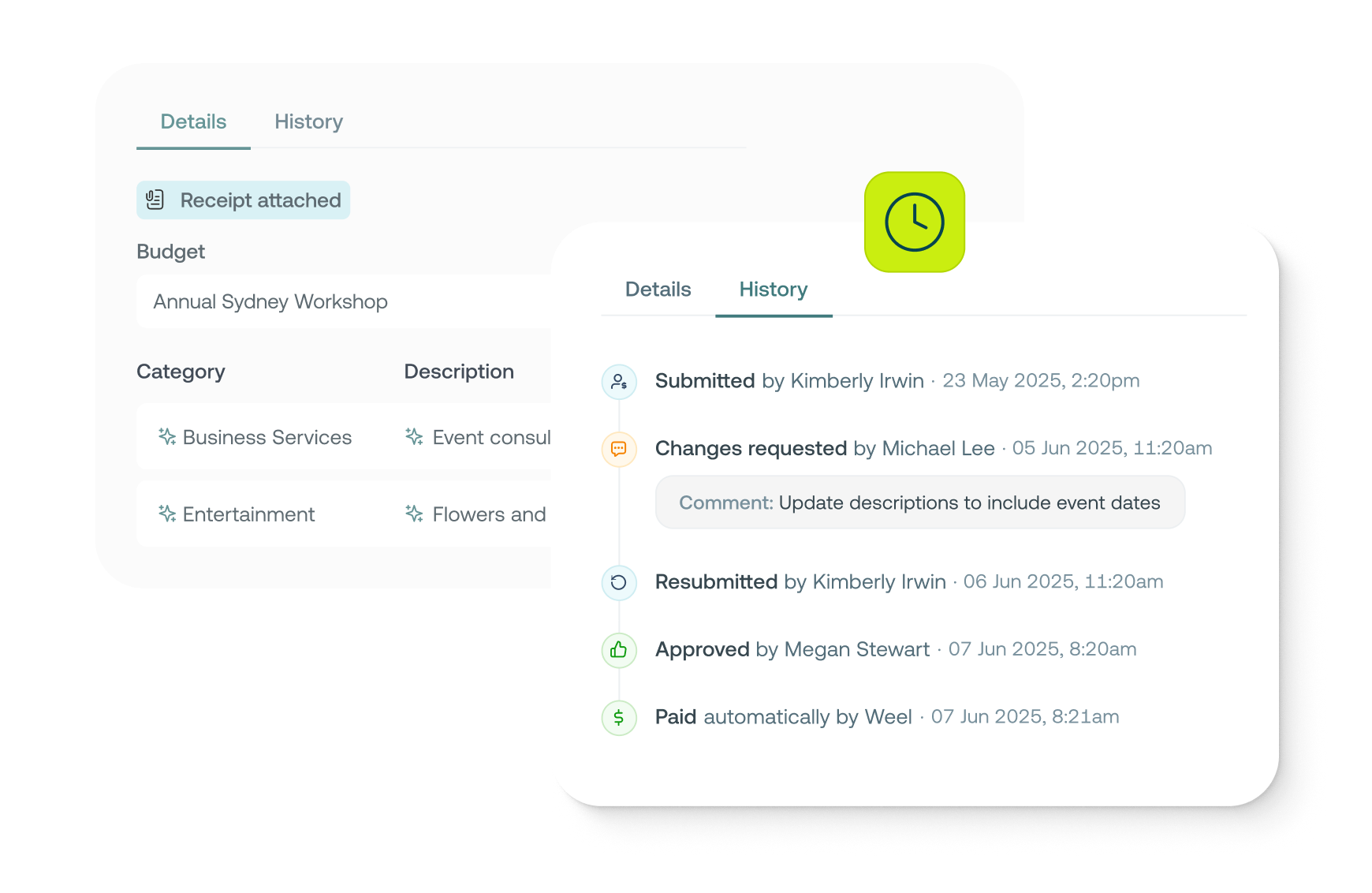
Every decision, on the record.

Who submitted it, who approved it, when, and which rule applied.
Full history on every item - approvals, declines, comments and reassignments.
Export approver, date and decision straight to CSV for your auditors.

Everything on your evaluation checklist

The approval controls finance and IT teams screen for during evaluation.

Multi-level approvals

Add as many steps as a rule needs, requiring any one approver or all of them before it moves on.

Delegation and out of office

Every user has a delegate approver. Switch on out of office and pending and new items reroute automatically.

Separation of duties

Prevent self approval is on by default, redirecting a requester's own items to their delegate.

Conditional routing

Filter rules by amount, user, budget or role, and order them so the most specific match wins.

Policy enforcement

Accounts payable, reimbursements and top-ups always carry a fallback rule, so nothing escapes approval.

Audit trail and export

Every decision timestamped with the rule that applied, exportable to CSV for your auditors.

Approval rules vs email approval chains

Capability

Weel approval rules

Email and spreadsheets

One rule set across cards, invoices, reimbursements and top-ups

Routes to the budget owner without a rule per department

Any or all approvers, with as many steps as you need

Self-approval blocked by default

Out of office reroutes to a delegate automatically

Every decision timestamped with the rule that applied

Built for the people doing the approving

Custom approval notifications

Get notified right when you’re ready to approve

Custom views

Filter down to what needs your attention or expand to see all pending approvals

Approve in bulk

Clear a whole queue at once, or open any item for a closer look

Approve from anywhere

Approve from web or on the go from our mobile app

Weel already helped to reduce our expense processing time by up to half a day. With multi-level approvals, we've now been able to halve that time again.

Kaia Kaldoja
Head of Bookkeeping, BlueRock

Frequently asked questions

How do I set up approval rules without writing one for every budget?
Build them in the Approval Rule builder. Filter each rule on amount, user, budget or role, pick the approvers - a named user, a role, or the budget's own owner - and choose whether any one of them or all of them must sign off. Add as many steps as you need. Naming budget owners as the approver means one rule covers every budget, instead of one rule each.
What happens if two rules could apply to the same payment?
Rules run top to bottom and the first one that matches is the one that applies, so specific rules sit above general ones. Invoices, reimbursements and budget top-ups always end in a fallback rule, so nothing reaches payment without a decision against it. Card expenses are the exception - they need no approval until you write a rule for them.
Can someone approve their own spend?
Not by default. Prevent self approval is switched on for every payment type, so when the person requesting is also the assigned approver, the item goes to their delegate approver instead. You can switch it off per payment type if you would rather those requests pass straight through. Either way, the later steps in the workflow still run.
What happens to approvals when an approver goes on leave?
Every user has a delegate approver, set in user management and defaulting to the account owner. Switch on Out of office with a start and end date, and both pending and new approvals move to that delegate for the period - so nothing waits in an inbox nobody is reading. Delegation and out of office are on the Premium and Enterprise plans.
Can an approver send something back instead of rejecting it?
Yes. Request changes returns the item to whoever submitted it with your comment attached, and once they fix it and resubmit, it runs through the full rule again. Decline and archive stops it for good. Approvers action items from the web app or the mobile app, and can approve or decline in bulk from the web.
How do we show an auditor who approved what?
Every item carries a History tab: who submitted it, each approver and their decision, the timestamp, any comments, and any delegation or reassignment along the way. It also records which rule applied and links back to it, even if that rule has changed since. The same fields export to CSV from the transactions page.

Request a demo

A Weel expert will reach out to discuss your needs
Over 60,000+ cardholders in Australia and New Zealand.
4,000+ finance teams trust Weel to close every expense.
The top-rated corporate card platform in the region.
Weel Dashboard