What's new?
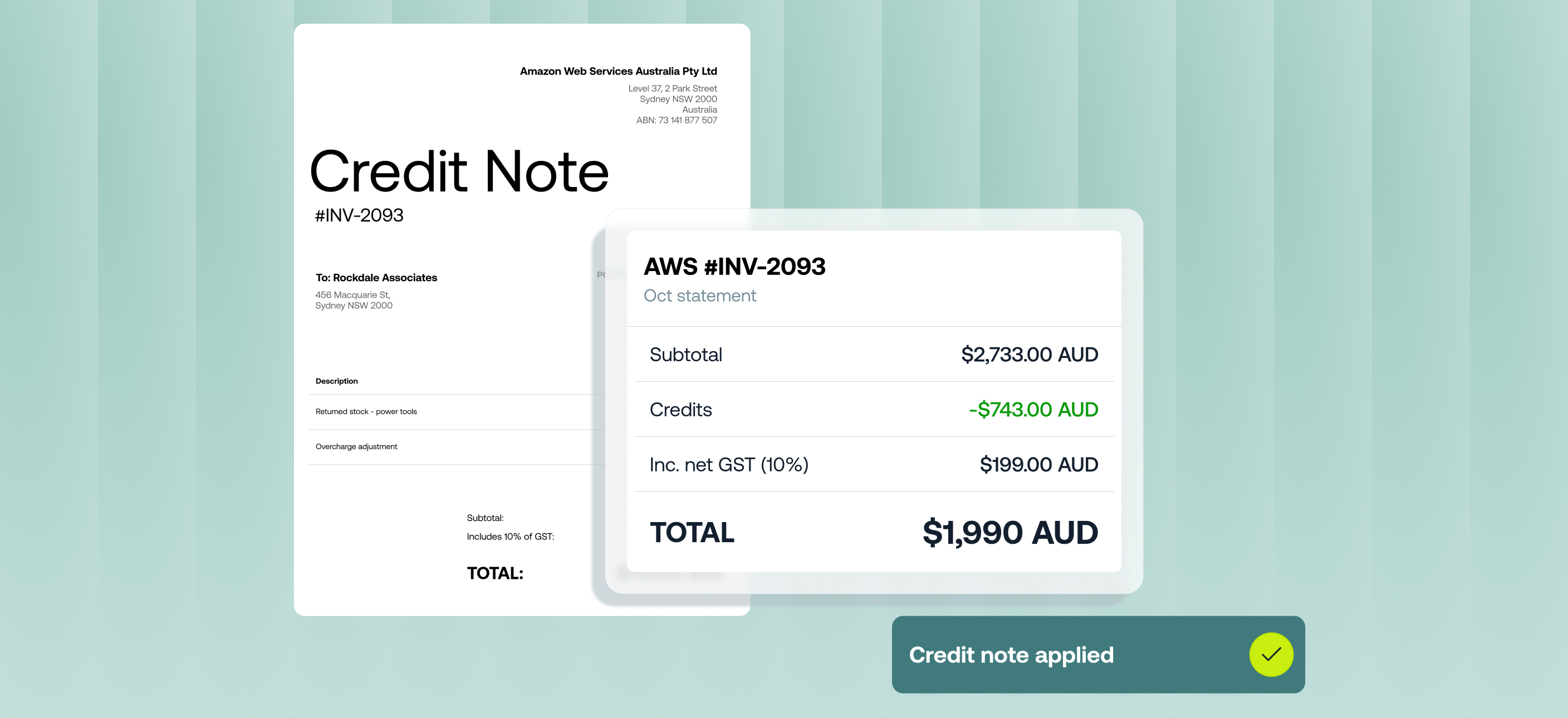
You now record supplier credit notes in Accounts Payable and apply them to your invoices, so only the balance you owe is paid. Each credit note is stored against the supplier, goes through approval and syncs to your accounting software (Xero, Business Central, MYOB), along with the invoices it's applied to. Previously, handling a credit meant short-paying an invoice, or recording the credit separately in your accounting software.
When you code an invoice, Weel applies that supplier's available credit automatically. You can adjust the amount or remove it before you save. Any credit left over stays with the supplier for their next invoice.
Credit notes is currently in beta and available in all plans.
Why it matters
- Keep every credit note in Weel: Credit notes and their documents are stored in Weel, so you have a record of every credit alongside the invoices it's applied to.
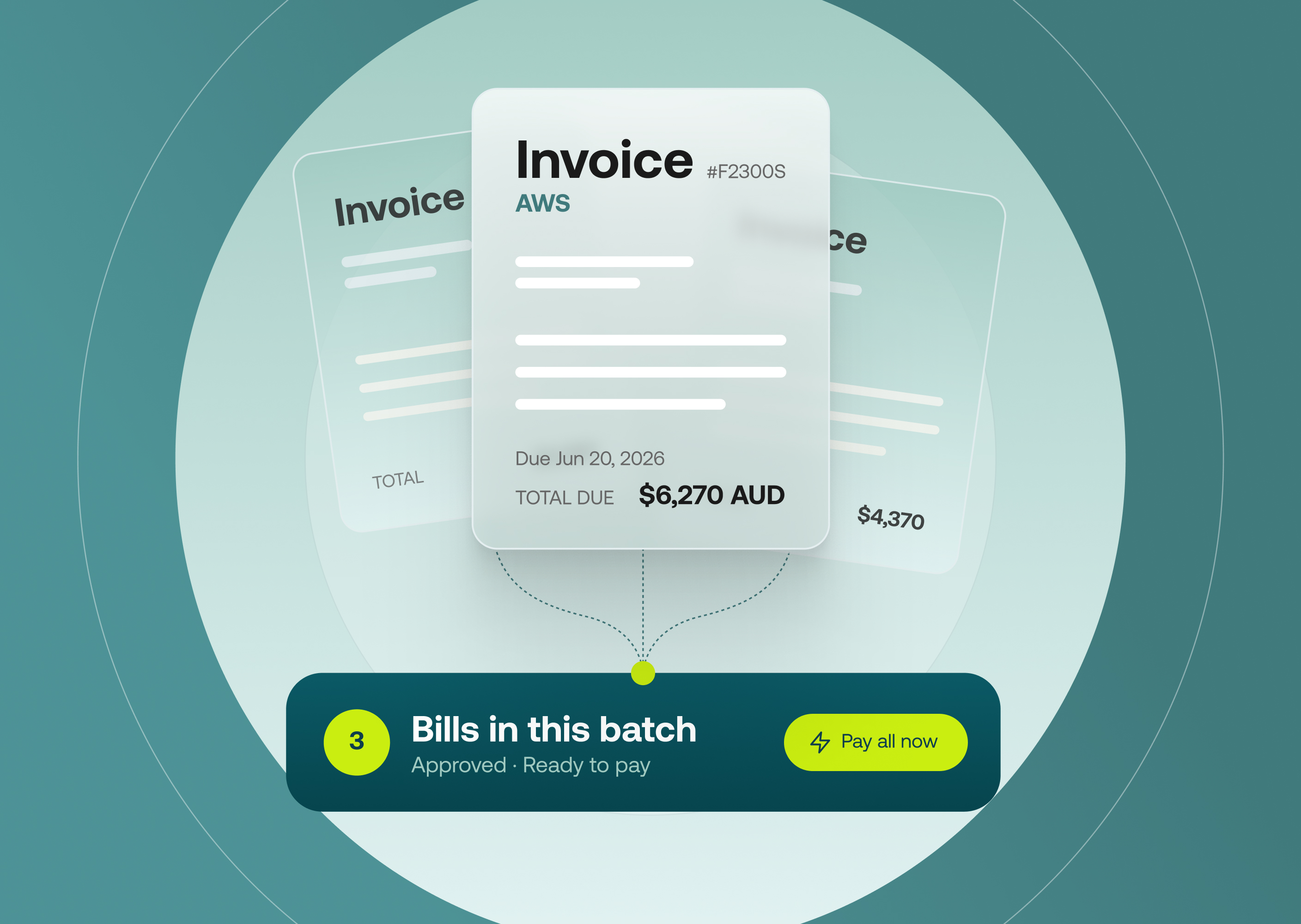
- Pay the right amount: The credit comes off the invoice and only the balance is paid, including when the invoice is paid in a batch payment.
- The original invoice stays as issued: No editing line items or entering negative amounts. The invoice keeps its full value and the credit is recorded against it.
- Credits live on the supplier: Each supplier record shows its available credit, with full visibility of the past invoices, purchase orders and credits logged against it.
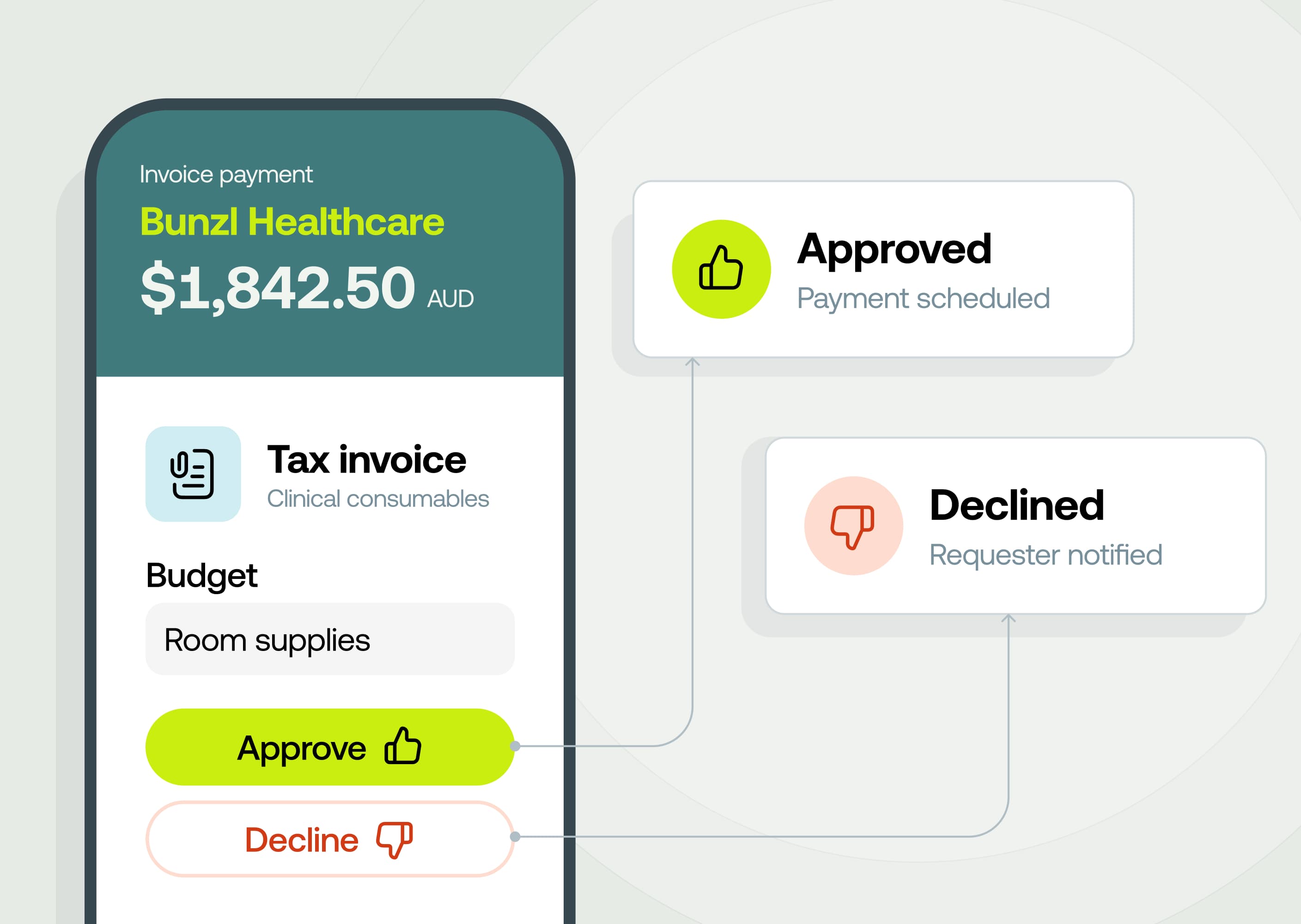
- Customised approval rule: Credit notes have their own approval rule, and no credit is applied until it's approved.
- Your books and your supplier stay in step: The credit note and each allocation sync to the accounting software, and the remittance advice shows the invoice amount, the credit applied and the amount paid.
How it works
Credit notes are approved by your business Owner by default. To change the approver, go to Approval Rules and edit Credit note rules, under Invoice Payments.
- In Accounts Payable, go to Credit notes and click New credit note
- Choose the supplier, enter the credit note details and credit line items, attach the document, and click Submit for approval
- Once approved, the credit shows as Available credit on that supplier
- When you code an invoice from that supplier, the available credit is applied automatically in the Credits section, oldest credit note first. Change the amount or click Remove before you save
- Credit is locked in when the invoice is approved, and the invoice is paid at the reduced amount with remittance clearly noting the credit