What's new?
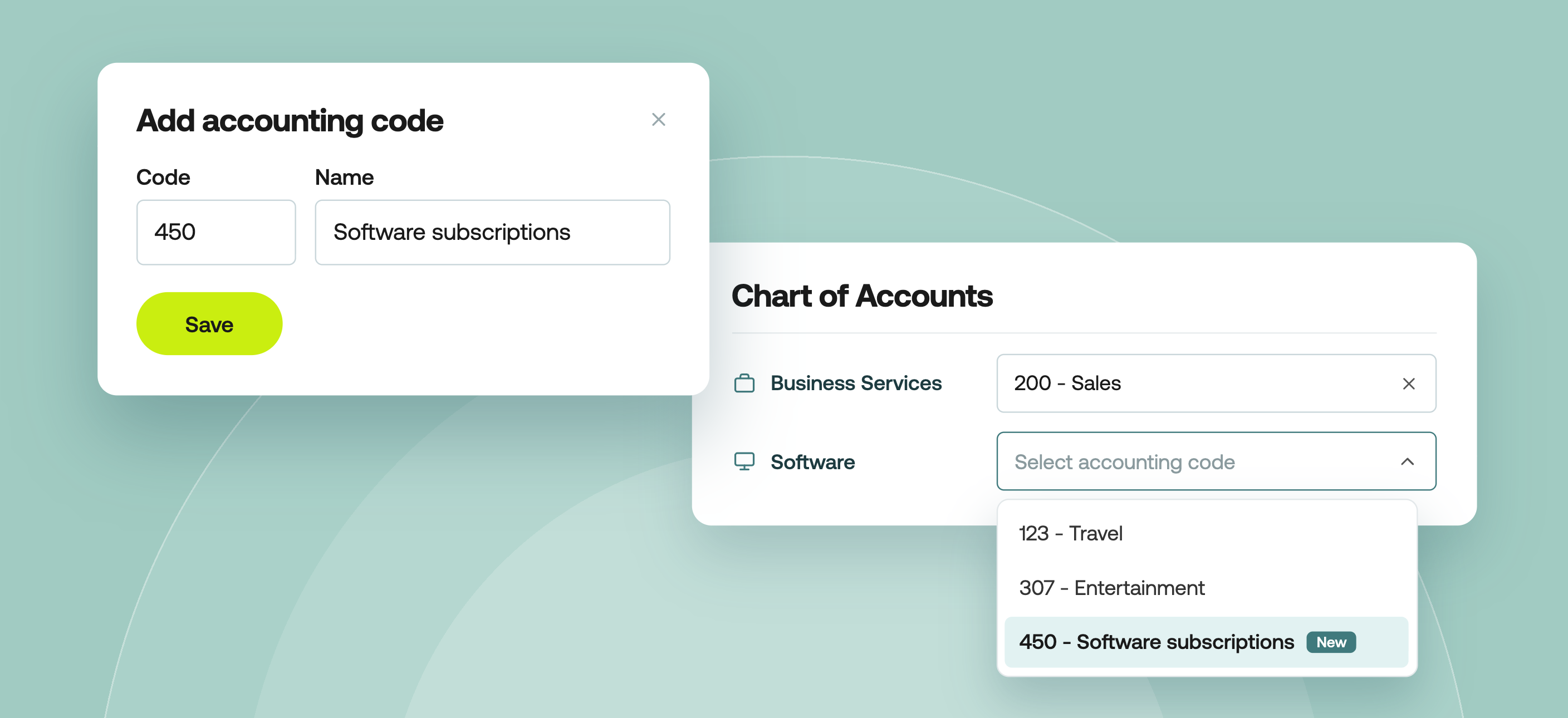
If you manage your chart of accounts manually in Weel (rather than syncing it from accounting software), you can now manage each code from the Chart of Accounts page:
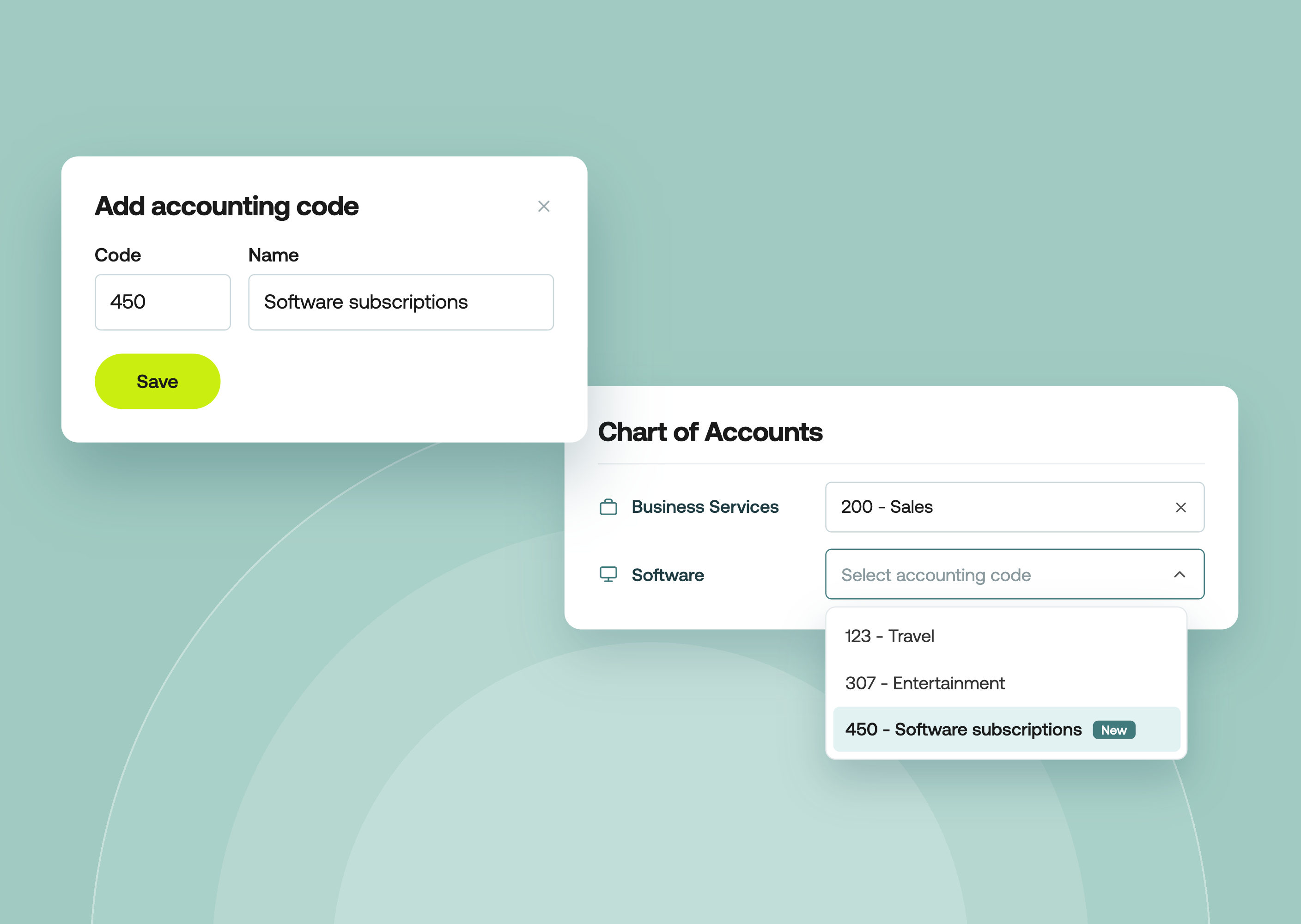
- Add a single accounting code with its code and name
- Edit a code's number or name. Category mappings stay in place
- Delete a code you no longer use. Weel tells you which categories are mapped to it first
Updating a CSV is more flexible too. When you re-upload, choose Add and update codes to add new codes and rename existing ones without touching the rest, or Replace all codes to start fresh. Weel shows you what will change before anything is saved.
Available on all plans for Owners, Admins and Accountants.
Why it matters
- Small changes stay small. Adding one new GL code used to mean re-uploading your full CSV or asking the Weel team to do it. Now it's done in seconds.
- Fewer surprises at export. Weel blocks duplicate codes and warns you before you delete a code that categories are mapped to, so nothing breaks quietly.
- No more starting from scratch. Add and update mode only changes the codes in your file. Everything else stays as it is.
- See what will change first. Before you confirm an upload, a preview shows how many codes will be added, renamed or removed.
How to get started
- In the Weel web app, go to Settings > Chart of Accounts
- Click Manage accounting codes
- Click Add accounting code, or use the menu on any code to Edit or Delete it
- Enter the Code and Name exactly as they appear in your accounting software, then click Save
- Map the new code to a category so it flows through to your exports