What's new?
We've rebuilt how Weel handles tax. The free-text GST field is gone. In its place is a tax rate dropdown on every card expense, reimbursement and invoice, using the same tax rates as your accounting software.
If you're connected to Xero, MYOB, QuickBooks, NetSuite or Business Central, your tax rates sync into Weel automatically. If you're not integrated, you can create your own. Either way, you set a default rate for domestic and international payments, and Weel applies it to every new expense.
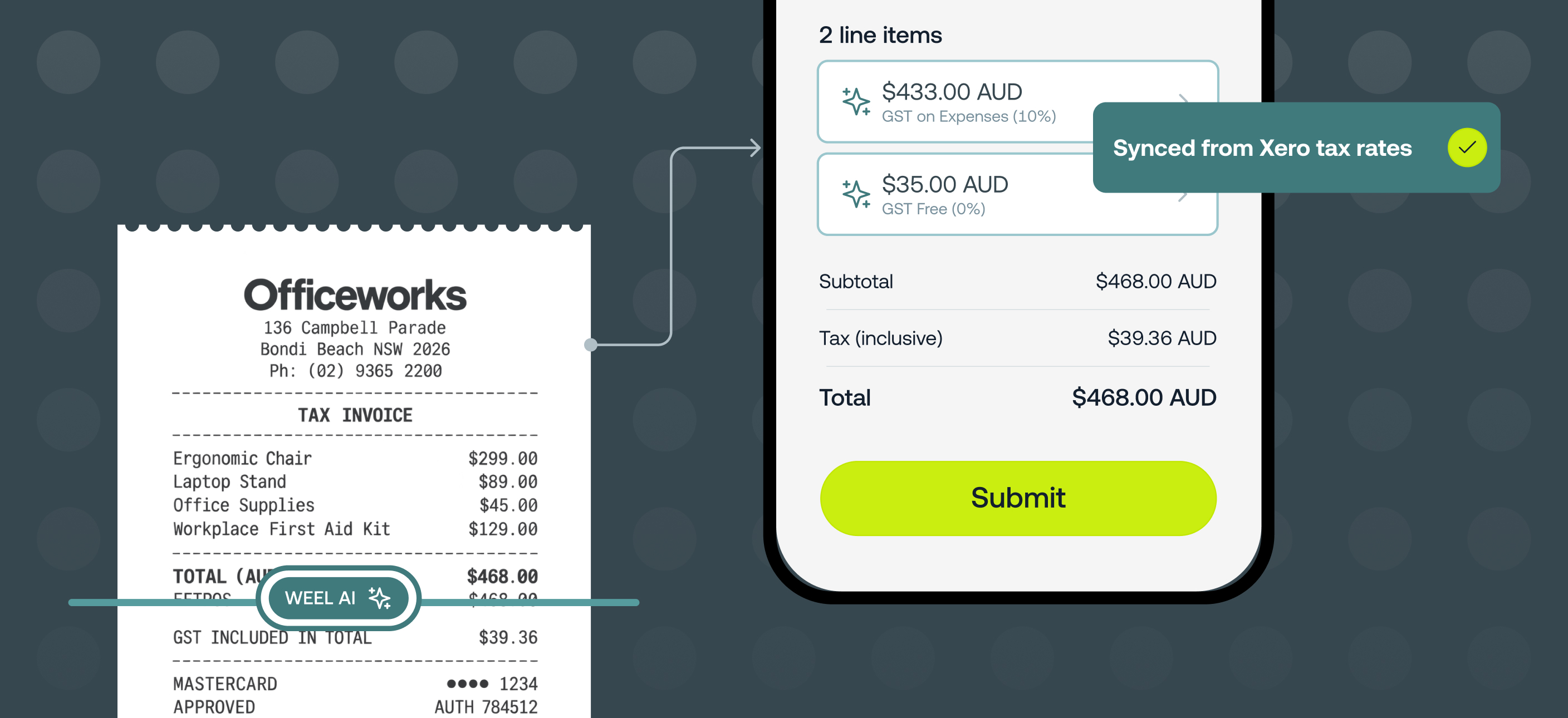
Alongside tax rates we have also released AI tax rate selection. When a receipt is uploaded, Weel AI reads the GST on it, checks your past expenses with that merchant and selects the correct tax rate. If only part of a purchase is taxable, such as a supermarket shop that mixes GST and GST-free items, Weel AI splits it into taxable and non-taxable line items for you.
Tax rates and AI tax rate selection is available on all plans.
Why it matters
- What you export is what your accounting software expects. Each expense carries the exact tax rate from your accounting software, so exports no longer rely on translating a GST amount into a rate. Your CSV exports now include a Tax Rate column too.
- No more checking the GST on every expense. Team members pick from a short list of rates you control instead of working out a dollar amount, and the right rate is usually already selected for them.
- Mixed purchases are split for you. When a receipt shows less GST than the full amount would attract, Weel AI splits the expense into a taxable and a non-taxable portion. Click See calculation to see exactly how it worked it out.
- Weel AI shows its work and never overrides you. Every AI-completed field is marked AI suggested, each suggestion is checked against the GST on the receipt before it's applied, and a tax rate someone has chosen themselves is never changed.
- Names your team will recognise. Give any tax rate a simpler nickname for use in Weel. The original name from your accounting software is still used when syncing back.
How to get started
Set up your tax rates (admins)
- Go to Settings, then Expense fields, and find Tax rates
- Click Edit available tax rates
- If you're integrated, choose which synced tax rates are enabled and add nicknames if you like. If you're not integrated, click Add new tax rate to create your own
- Under Default tax rates, choose a rate for Domestic payments and International payments
- Click Update tax rates, then Confirm update. Changes apply to all new and pending transactions
Turn on AI tax rates (admins)
- Go to Settings, then AI and automations
- In the Weel AI panel, switch on Auto-select tax rates
Selecting a tax rate (team members)
- Open any expense on the Weel mobile or web app
- Tap or click on the tax rates field
- Select the appropriate tax rate from the available options