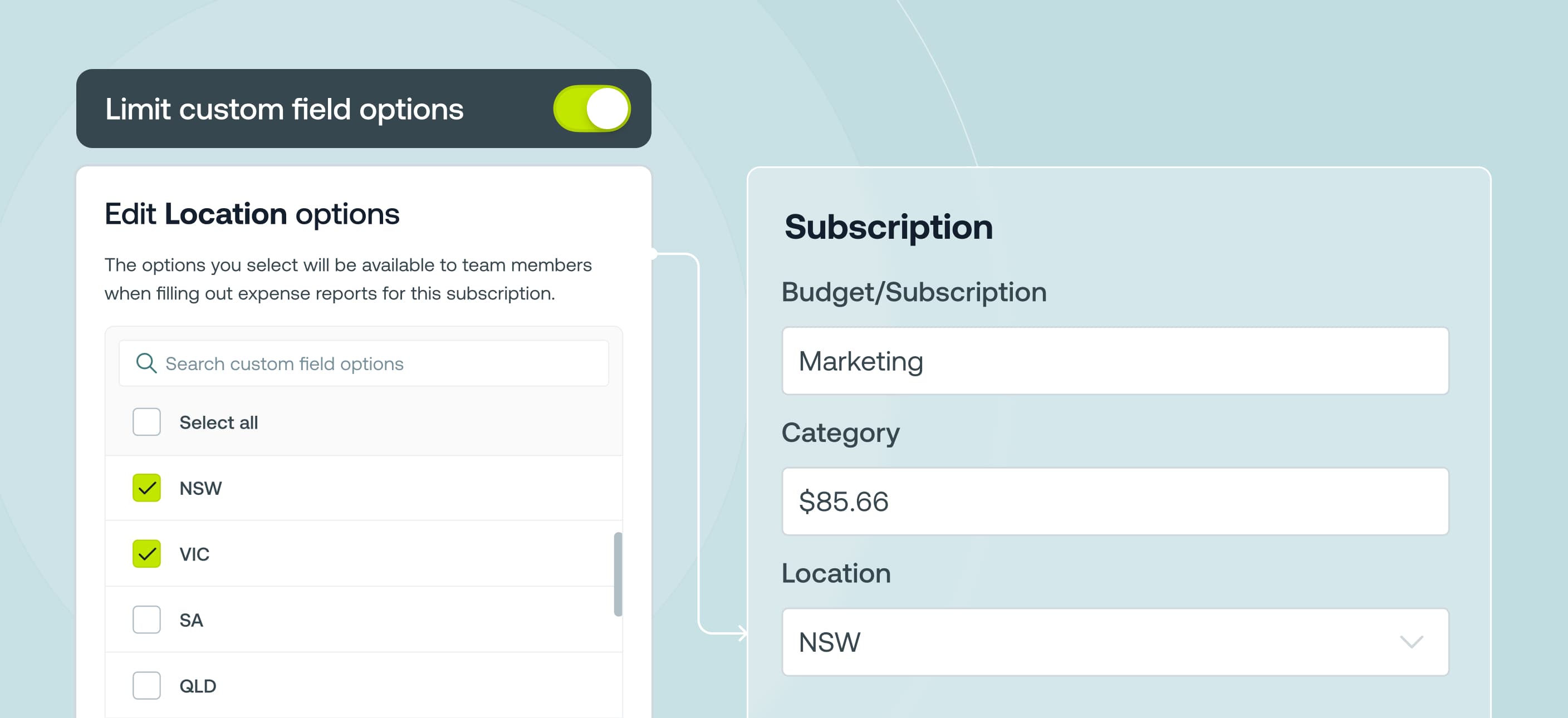

Admins can now limit which custom field options are available on each subscription, the same way you already do for budgets. This lets you limit custom field options down to a curated list ensuring that employees submit subscription expenses accurately the first time.
This is available on our Basic, Premium and Enterprise pricing plans.
- Finance teams looking to spend less time correcting miscoded expenses
- Team members overwhelmed by long lists of business codes when submitting expenses
- Team members stop picking the wrong custom field options
- Finance teams spend less time correcting miscoded expenses
- Month-ends are that little bit faster for subscription expenses
1. Open the subscriptions page and edit an existing subscription or create a new one
2. Enable the Limit custom fields toggle
3. Select Specific custom fields
4. Check the custom fields you want to appear for this subscription
5. For list-type custom fields, click the edit (pencil) icon to choose which options are available
6. In the modal, select the options that should appear and click Save



©2017 - 2026 Weel Holdings Pty Ltd
All rights reserved